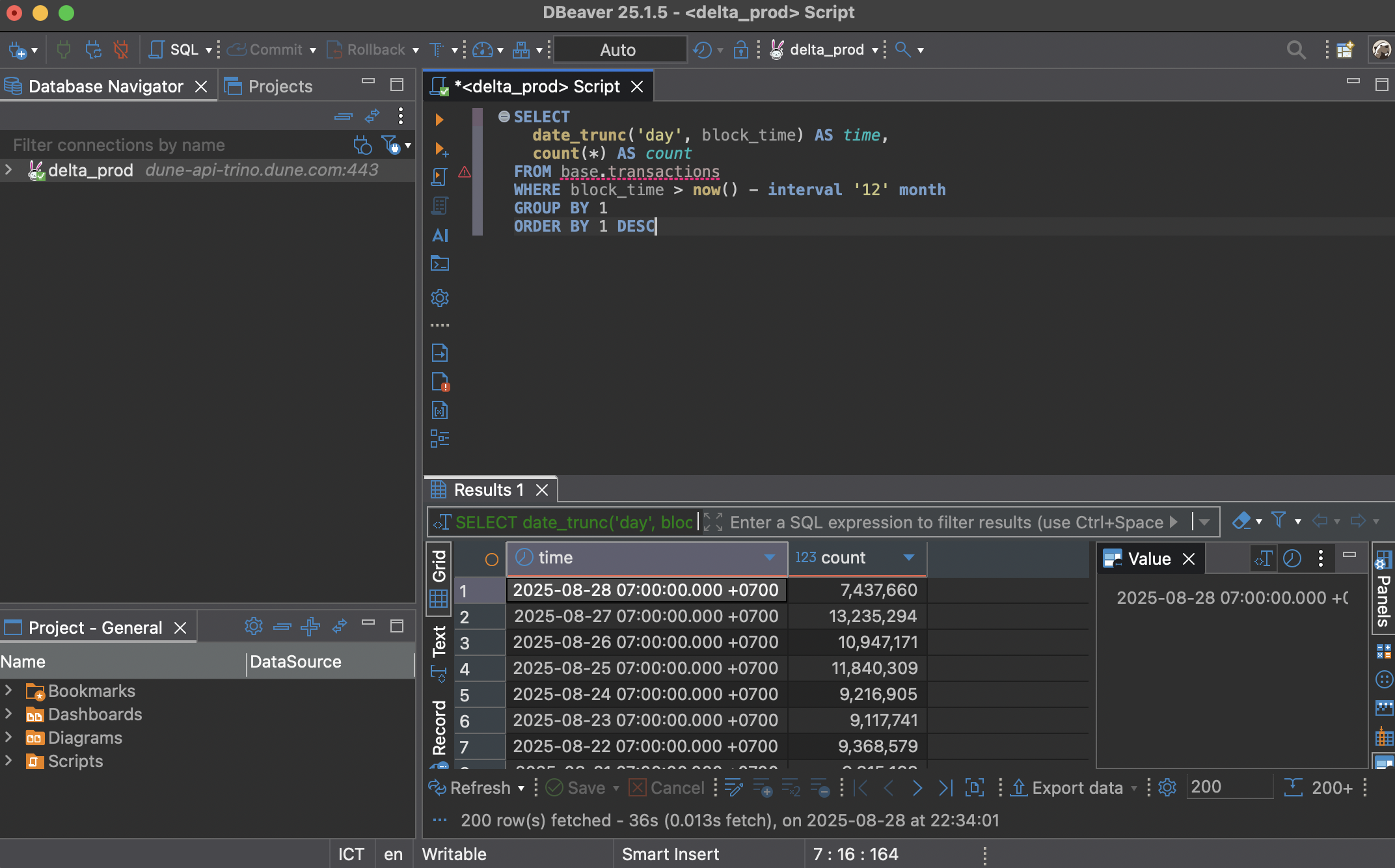
Add a Database Connection
1
Create new connection
In DBeaver, click the New Database Connection button. It usually looks like a plug with a plus on it.
2
Select Trino database
You’ll be taken to the “Connect to a database” screen. Find and select Trino from the list of accepted databases, then click on it.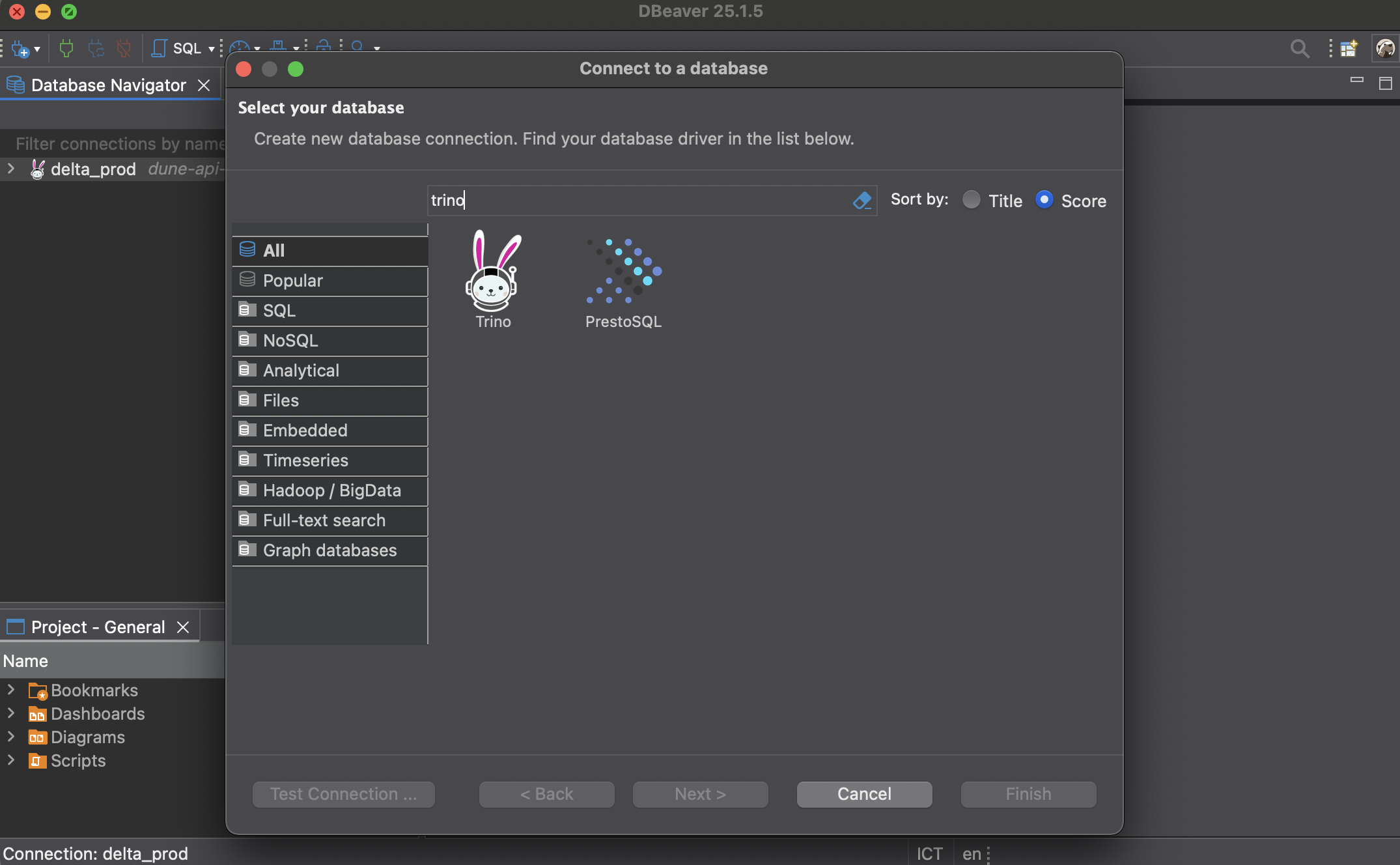
3
Configure connection details
You’ll be taken to a screen where you can fill in your connection details. Make sure to click Connect by host, then fill in the connection parameters using the values from the Connection Parameters section.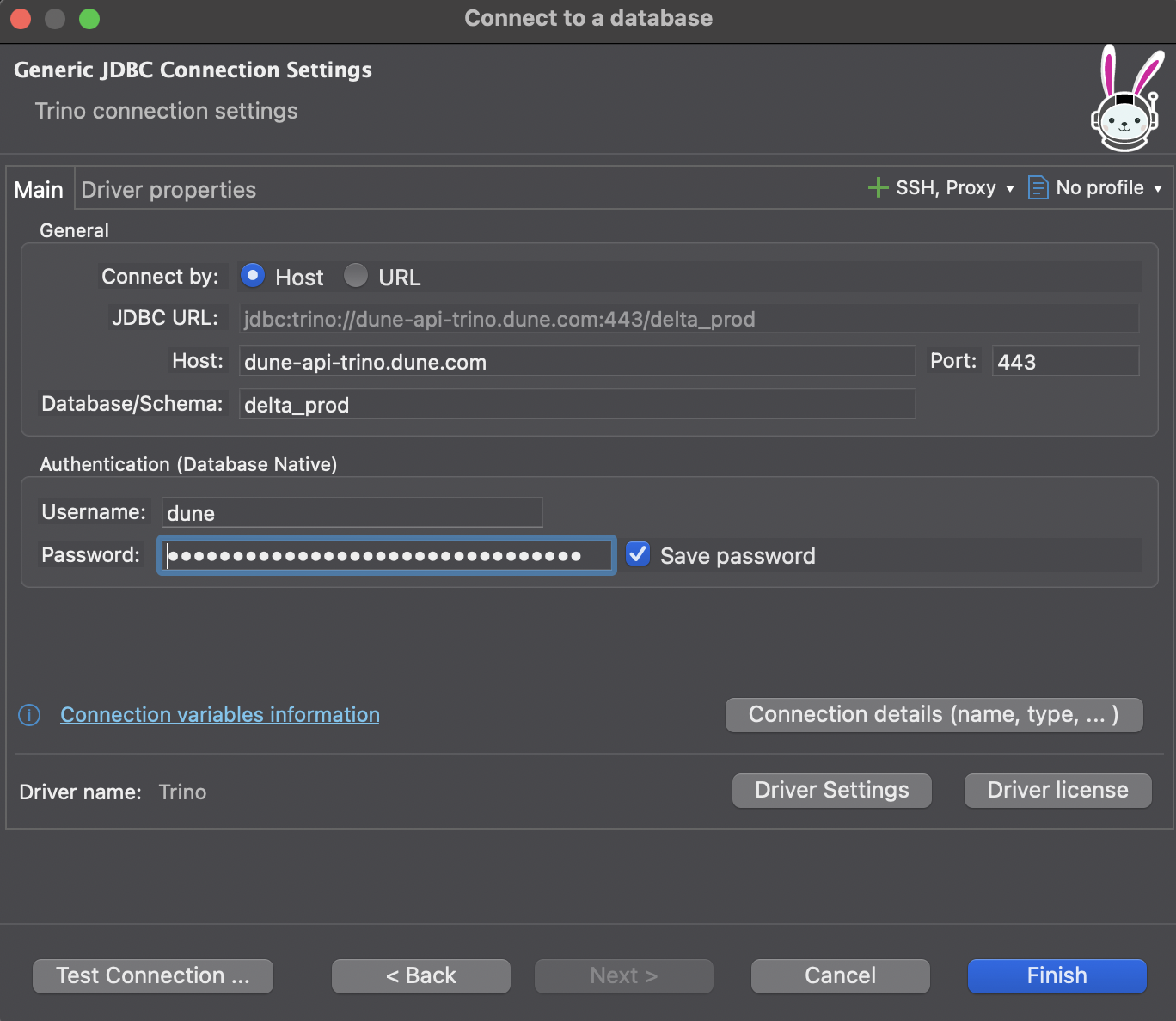
4
Finish connection setup
Once you have all the details filled out properly, click Finish to create the connection.
Run a Test Query
After configuring your connection, you can run a query to verify that everything is working.1
Open SQL editor
Right-click on your Dune database connection and navigate to the SQL Editor section. This will open up a new SQL editor.
2
Write your SQL query
In the SQL editor, you can write all of your Dune-compatible SQL. Paste the example query below into the editor.
3
Run the script
Click the Run button to execute your script. If everything went well, you will see the results displayed in the results panel.