

Add the Database Connection
1
Open Admin settings
From the Metabase home page, click the Settings gear icon in the top-right corner.
Select Admin settings from the dropdown menu.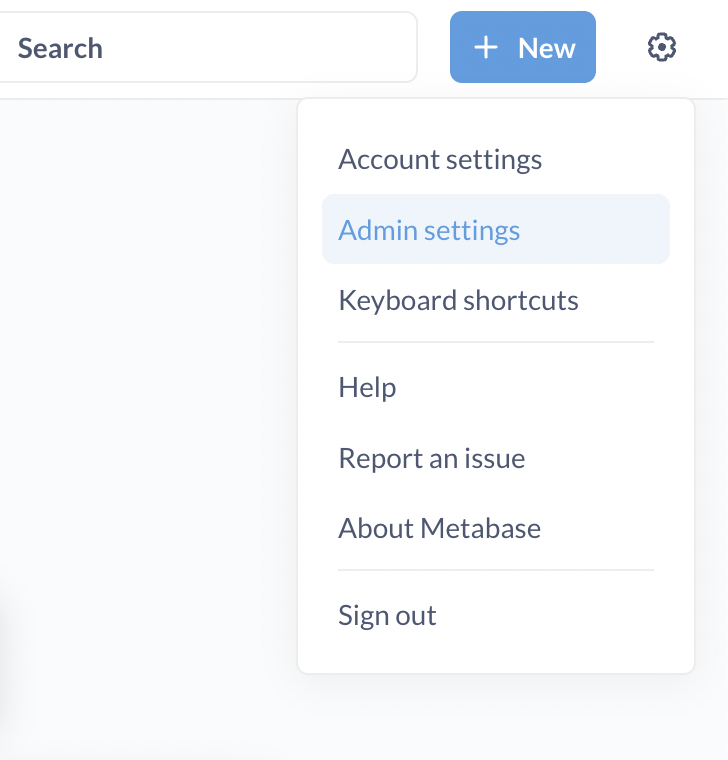
2
Go to Databases
In the Admin panel, navigate to the Databases tab.
3
Add database
Click the blue Add database button to open the configuration modal.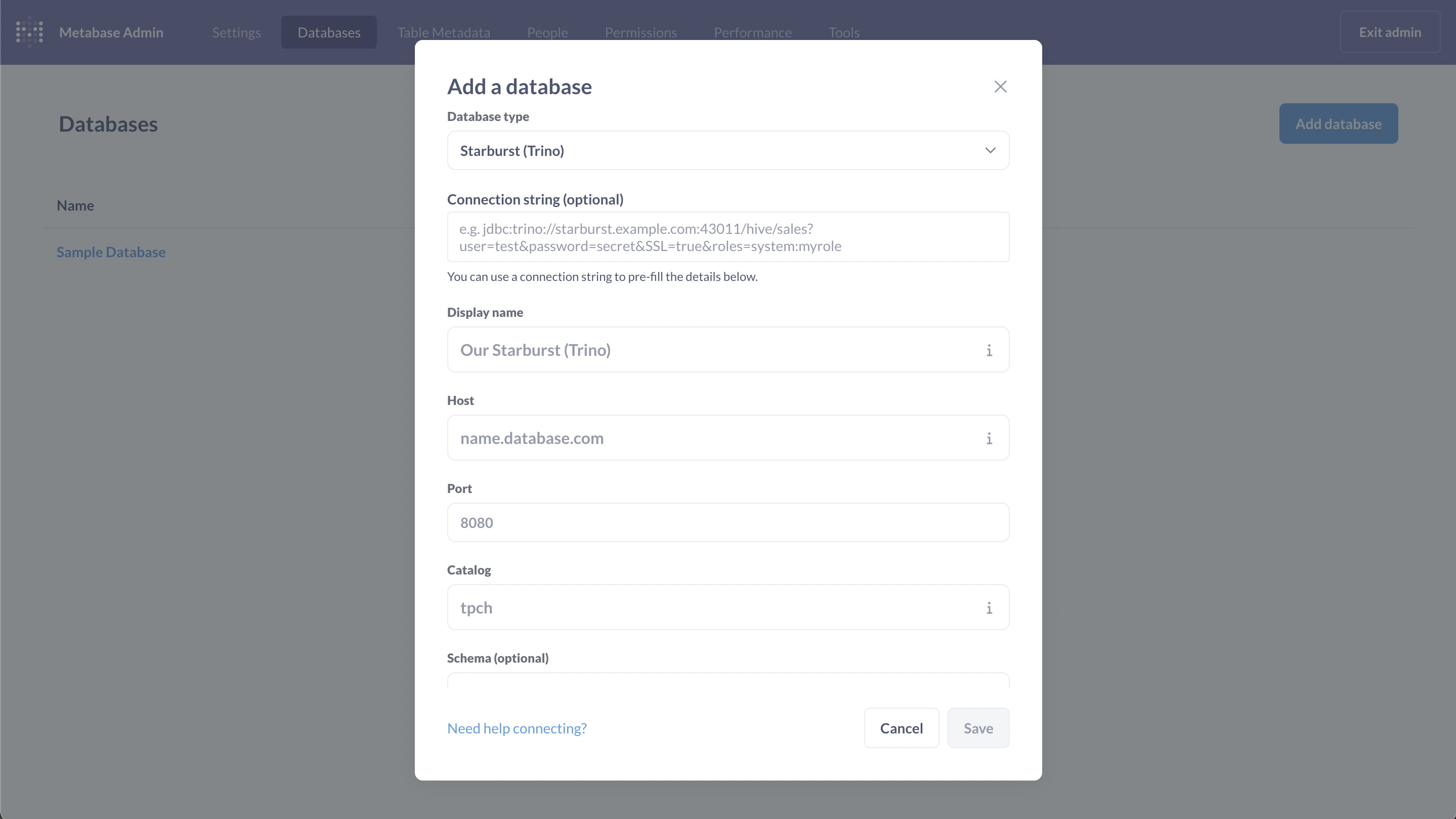
4
Choose driver
In the modal, select
Starburst (Trino) as the Database type.5
Enter connection details
Fill in the form fields using the values from the Connection Parameters section.
For best performance in Metabase, we recommend disabling Rerun queries for simple explorations and Periodically refingerprint tables in the advanced settings.
Schema discovery queries such as
SHOW TABLES or SHOW SCHEMAS may not be available in Metabase with this connector because Dune’s catalog spans millions of tables. Many BI tools are not yet optimized to enumerate catalogs at this scale. An update with improved schema discovery is planned for the future.Run a Test Query
After configuring and saving the connection, you can run a query to verify that everything is working.1
Create a new SQL query
Click the + New button and select SQL query.
2
Select database
In the editor, choose your newly created Dune SQL data source from
the Select a database dropdown.
3
Paste example SQL
Paste the example query below into the editor.
4
Run the query
Run the query to verify the connection.